
Maltego Basics: Building a Network Diagram
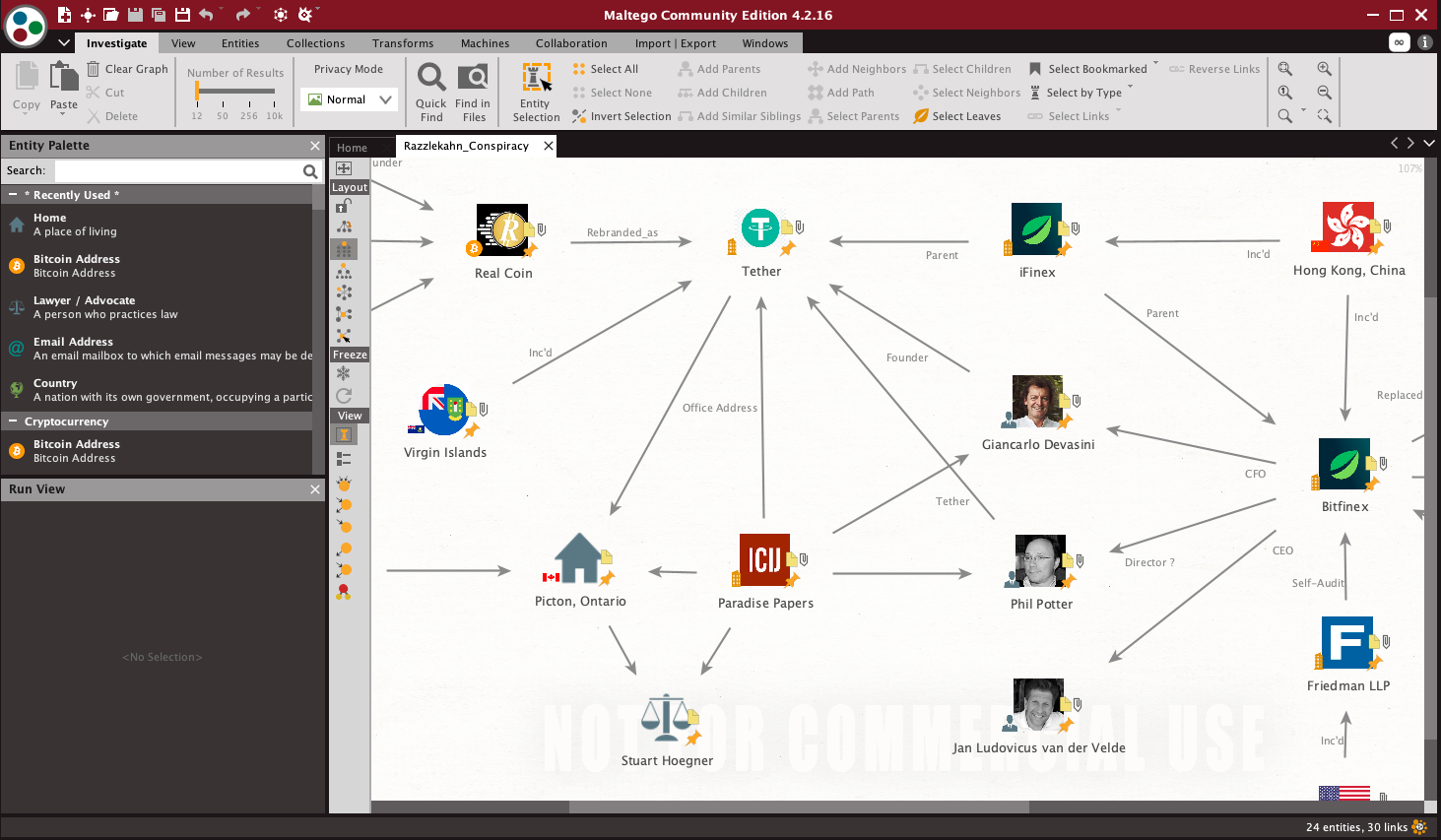
Screenshot of Maltego: Razzlekahn Part 1: Establishing Some Background.
This post is a step-by-step guide to create a network diagram in Maltego.
In addition to this step-by-step guide, here are two videos which cover the same steps:
To build this network diagram (also called a graph), I used the background information for the Razzelkahn Conspiracy. If you want to learn more about the Razzlekahn Conspiracy, please check out Untangling the Razzlekahn Conspiracy: An OSINT Perspective.
Getting Started
To get started, we’ll use Maltego Community Edition (CE). Maltego CE is the free, non-commercial edition of Maltego. Paid editions of Maltego start at €999. The paid edition will allow you to conduct more complex searches, and is well worth the cost once you start running Maltego Transforms.
To get started, you’ll need to create a Community Edition account here; then download and install Matego CE.
Once you’ve installed Maltego, look for the Maltego icon in your apps to open Maltego.

When you first open Maltego, it will ask you to login with the email address and password you registered with on their website.
Opening a New Graph to Build the Network
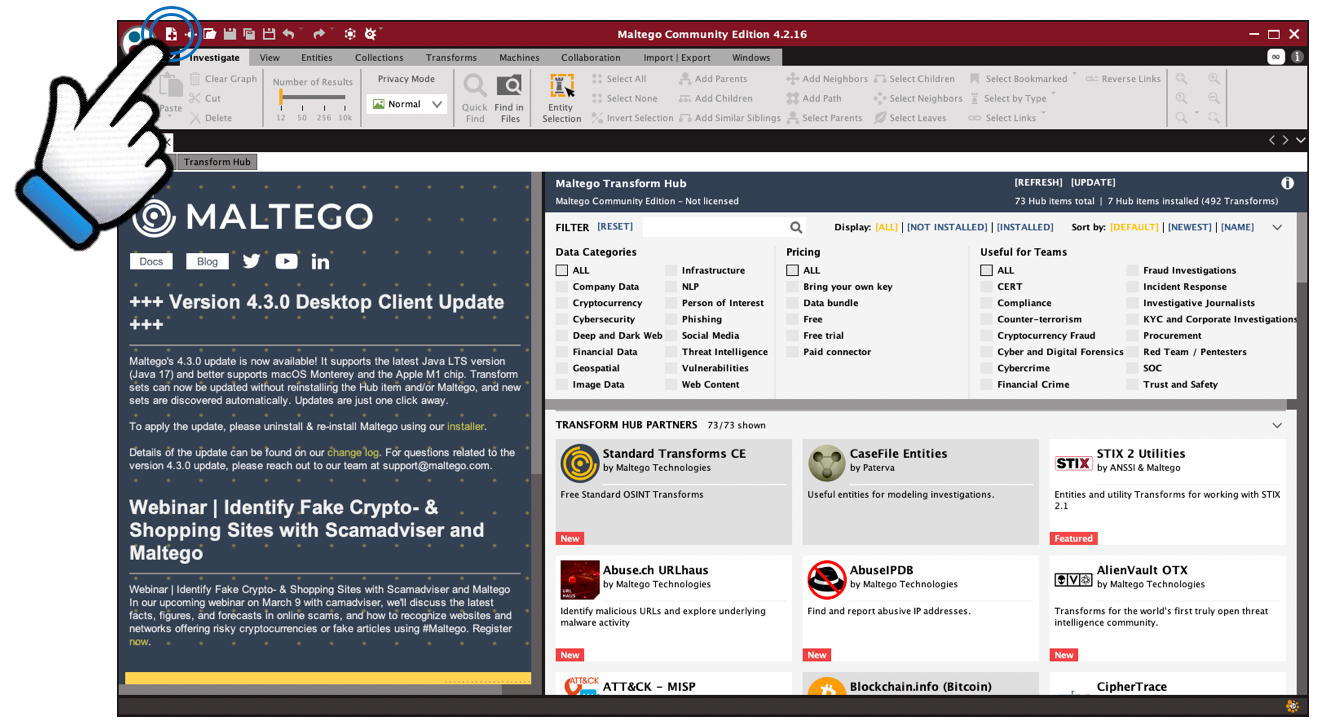
Once you have Maltego installed and you are logged in, you can create a blank graph by clicking the create a new graph icon in the upper left hand corner.
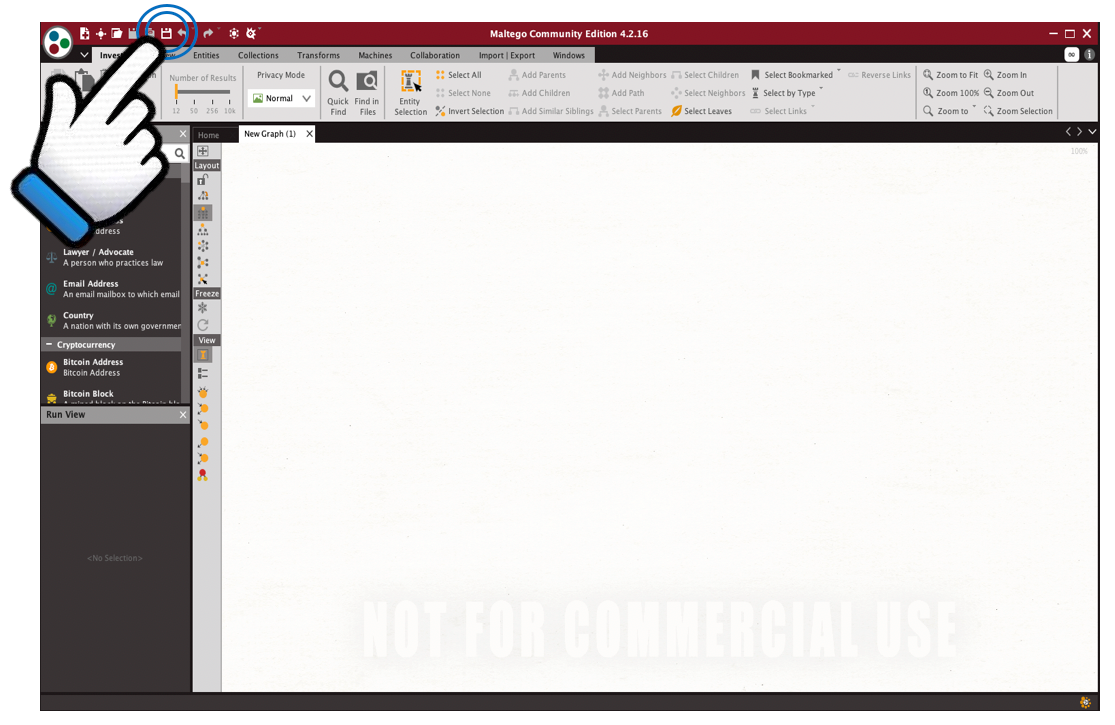
Now that you have a new graph open, click the save as icon to name your file and save your new graph.
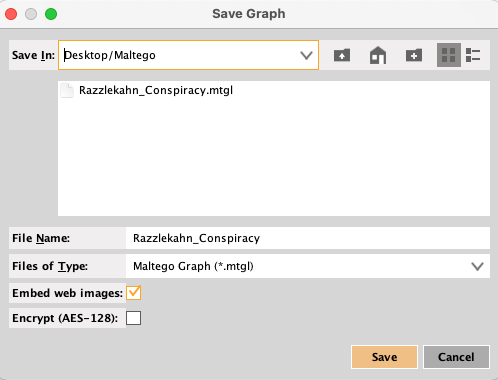
Make sure to save your new graph to your desktop or somewhere you can find it easily. Maltego Graphs save in .mtgl file format.
Creating Entities
As mentioned earlier, I’m using the Razzlekahn conspiracy to demonstrate some Maltego basics. The first step in any investigation is to do research and develop and understanding of the background around the case. Razzlekahn is accused of laundering the cryptocurrency stolen from Bitfinex in 2016. So, my baseline background will be the entities surrounding Bitfinex theft.
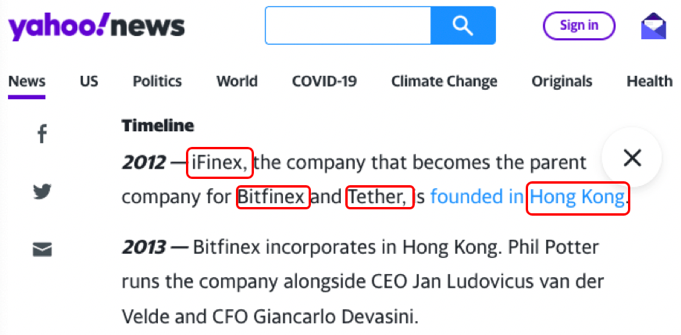
A quick Google search and I found a Yahoo Finance article by cryptocurrency journalist Amy Castor. The article provides a short timeline leading up to the hack, and provides a high-level overview of the major players in Bitfinex.
Timelines and network diagrams are foundational tools in almost every investigation. Where a timeline organizes the events of a case sequentially, a network diagrams allows us to see the relationships between the people, places and things which were part of those events.
To get started, transfer the entities from the Yahoo Finance article to your Maltego graph. The most orderly way to do this is by starting at the top of the article and just building an entity for each person, place or thing in the article. For instance, the timeline first states that iFinex was founded in Hong Kong and was the parent company of Bitfinex and Tether.
In graph theory, people, places and things are called nodes or vertices; Maltego calls them “entities”. Entitles are organized by type and can be searched in the entity palette on the left side of the app.
The first thing we are adding to the graph is iFinex which is a company. So, search the entity palette for a “company” entity icon.
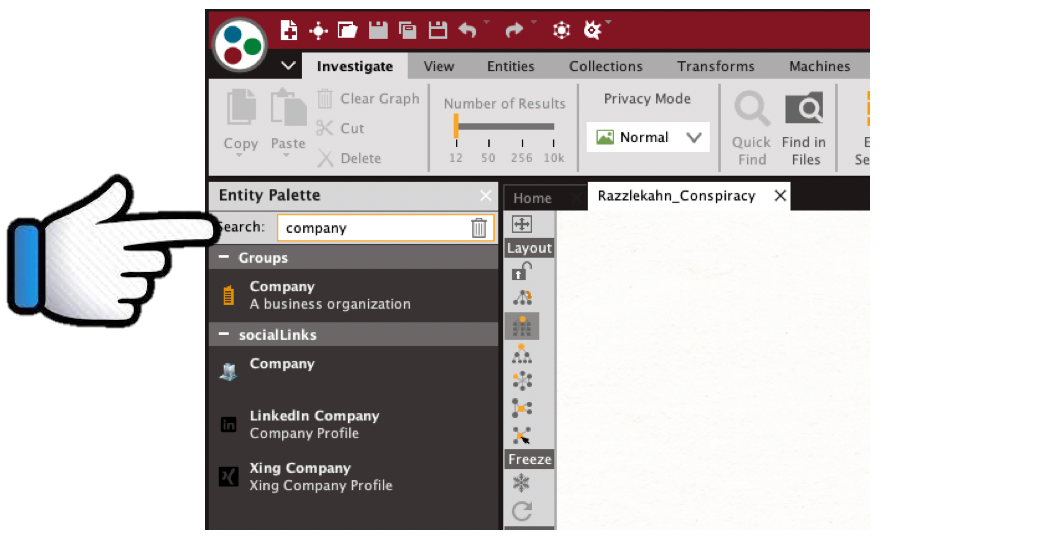
Once you’ve found the most appropriate entity icon for the person, place or thing you want to add, you simply drag and drop the entity onto your blank graph.
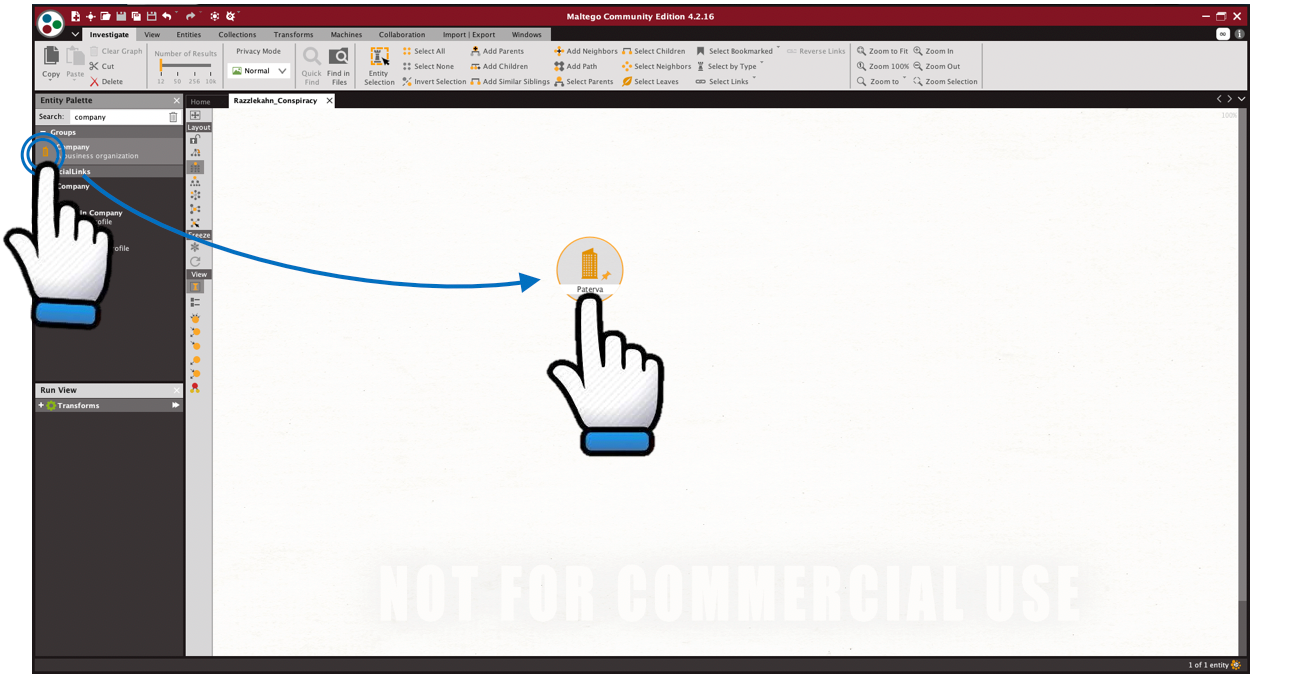
Then, double click on the entity icon on your graph. This will bring up the details pane for that entity.
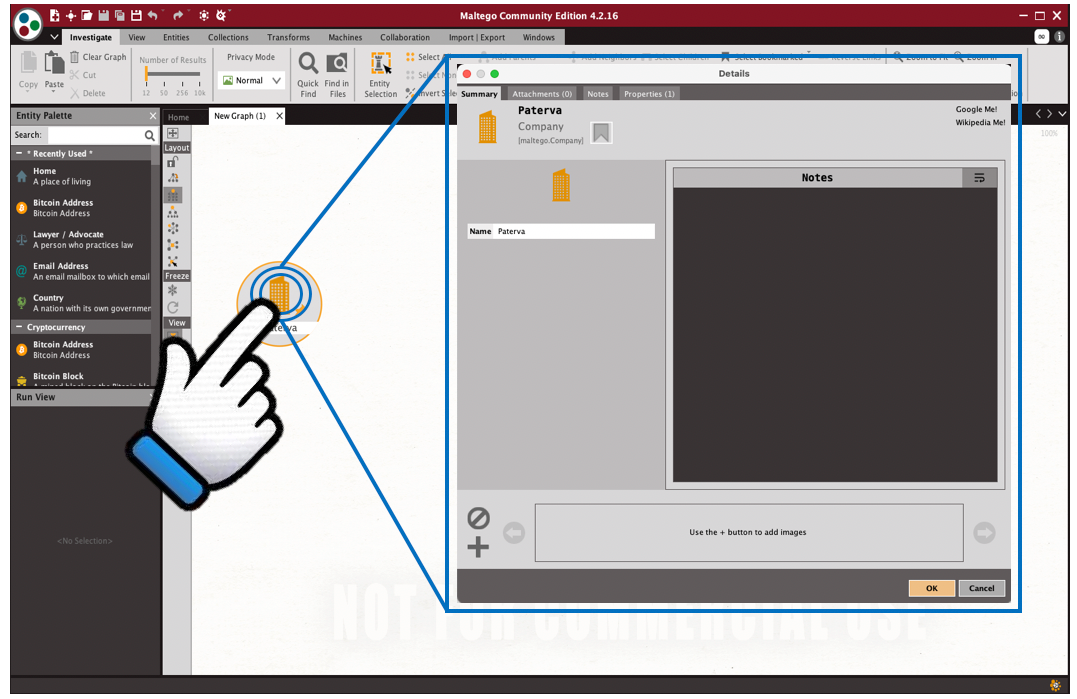
In the summary tab of the details pane, change the entity name to the name of the person, place or thing you want to add to your graph; in this case, “iFinex”.
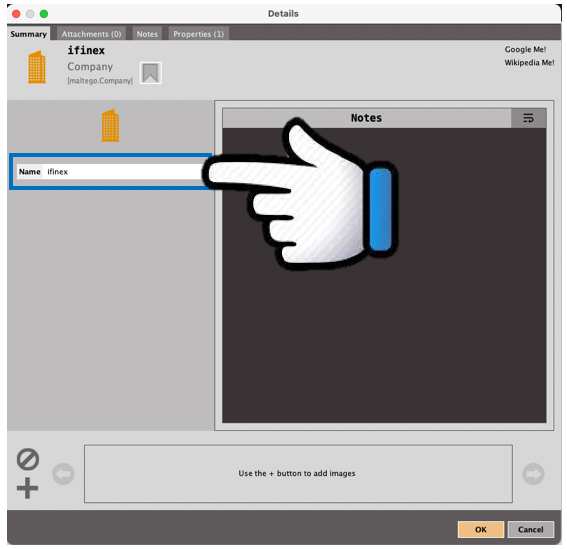
You might also want to change the entity icon to something more specific. In this case, change the icon from a building to the corporate logo of iFinex. A simple Google search returned a clear image of the iFinex logo which you can just save to your desktop.
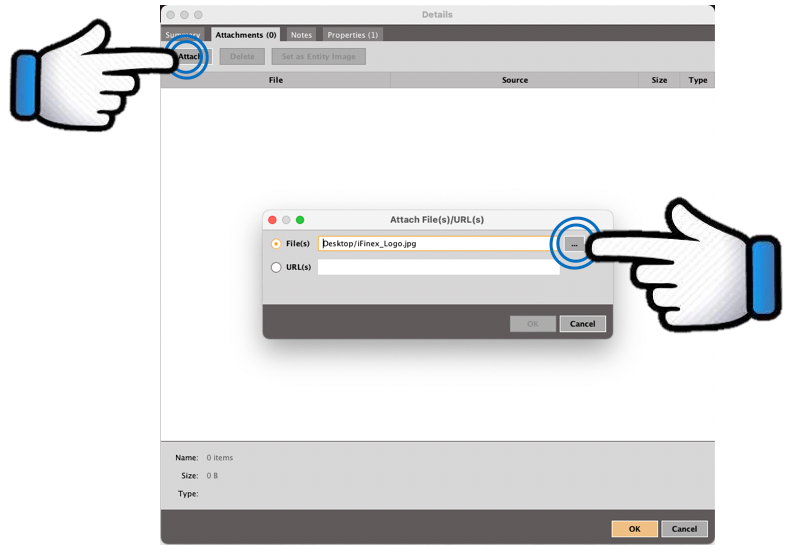
Then click “attach”, which brings up the file attachment pane. Click on the ellipses on the attachment pane and find the icon saved to your desktop. Then click OK. This adds that file to the details of this entity.
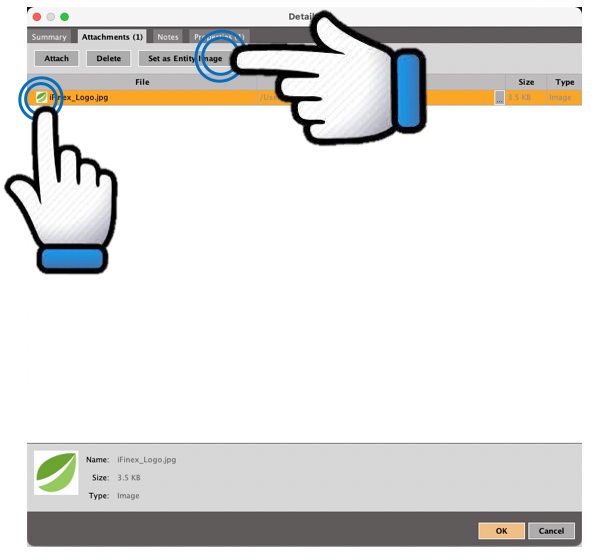
Once the file uploads, it will appear in the files list for the entity. Click on the file in the list so that it is highlighted orange. Then click “set as entity image”. This will change the icon on your entity from a building to the iFinex company logo.
Next, click on the notes tab of the entity details pane. This is a great place to cut-and-paste the exact text from which you based your icon as well as the link from the source.
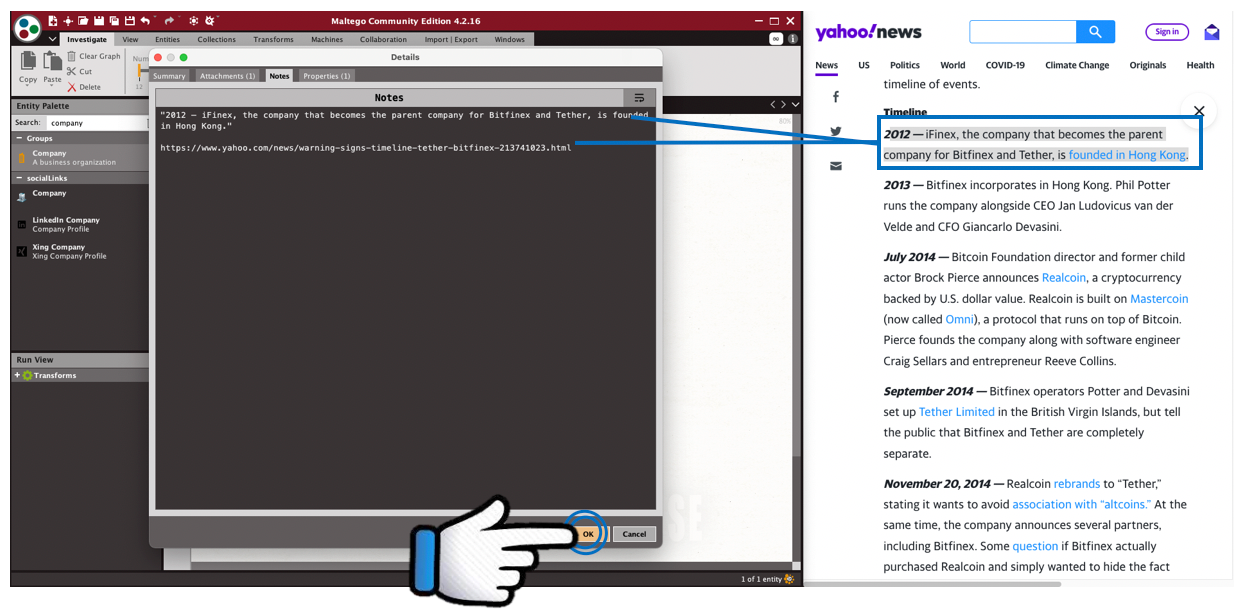
Once all the details are filled in on the notes tab, click okay at the bottom of the details pane and return to your graph. A this point you should have a company entity on your graph that clearly represents iFinex.
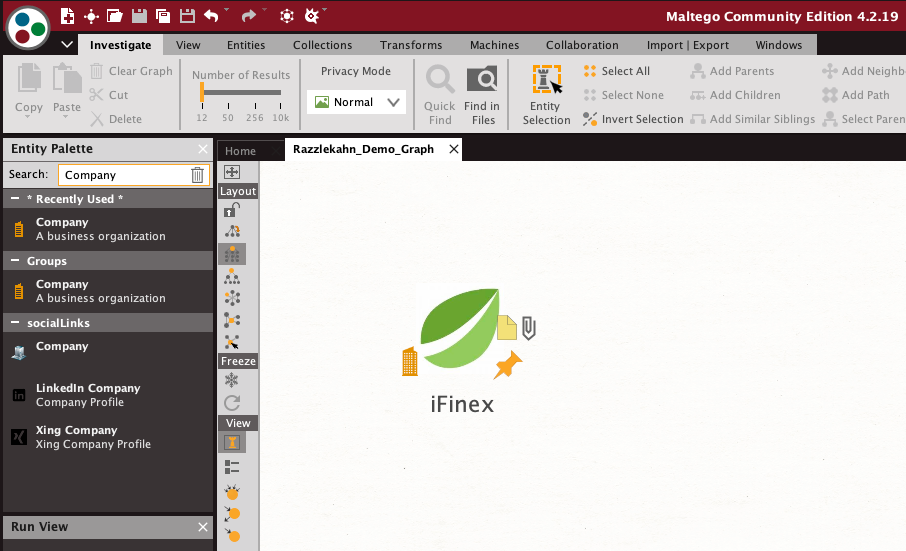
Now that you’ve got your iFinex entity build, repeat the process for Bitfinex and Tether.
Once all the company entities are created, create an entity for Hong Kong, the city where iFinex was incorporated. Creating an entity for a city, country or region, is very similar to creating entities for iFinex, Bitfinex, and Tether. First we are going to search for a “city” entity in the entity palette, rather than a “business” entity.
To do this, simply search “city” entity palette. Then, drag and drop the entity onto your graph.
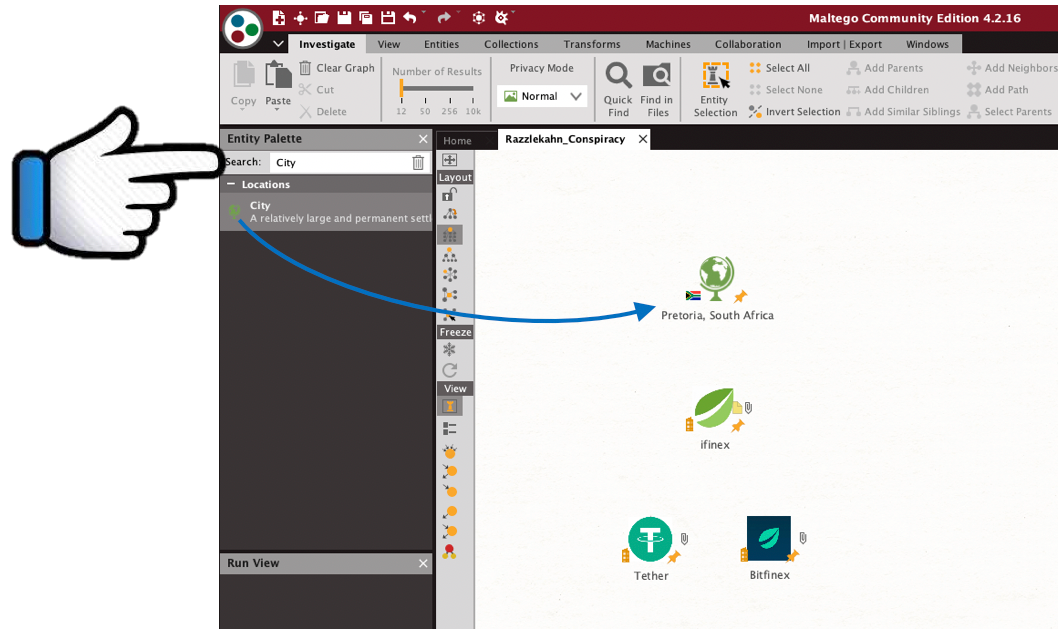
Double click on the city entity to open the details pane. Just as before, you can change the entity name in the summary tab. Then add notes and upload an icon for the city of Hong Kong in the notes and attachments tabs.
One additional step to take with a city or country entity is to change the two-letter country code in the properties tab. This will change the country flag on the entity in your graph.
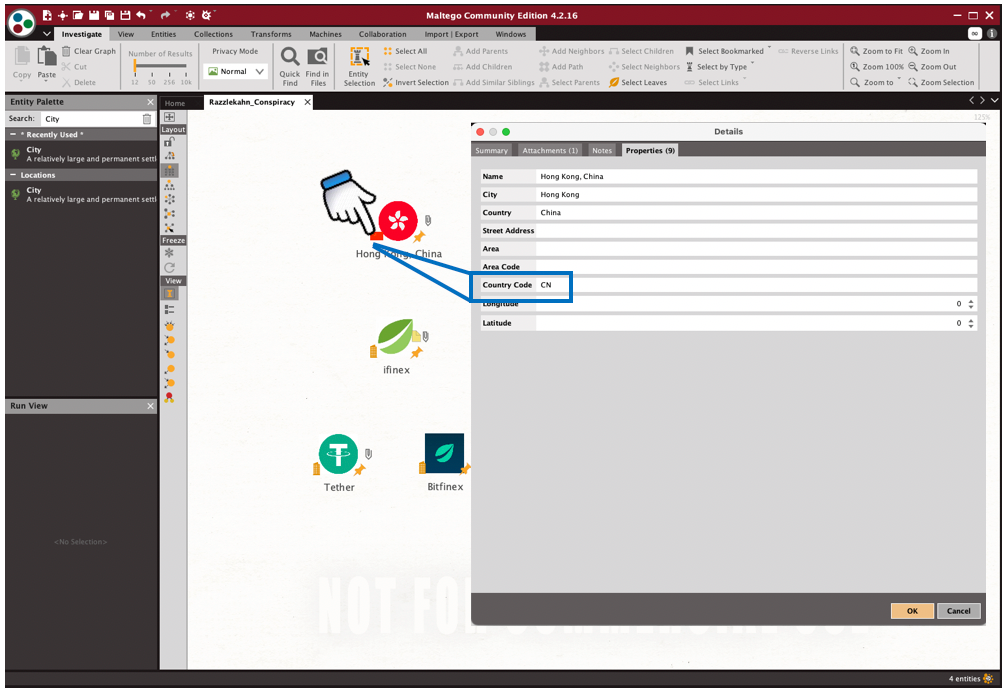
Changing the two-letter country code will also be important later when you start using Maltego’s “Transforms”. Matego Transforms require far more detail than we’ll cover in this tutorial. The gist is, transforms allow Maltego to conduct various searches that are specific to the type of entity. You want to make sure you are using the appropriate country code in your entity properties so Maltego is searching for the right county relationships. A few good introductions to using transforms have been created by Maltego, @wondersmith_rae, and Shannon Morse from Hack 5.
Once you’ve created the company and city entities, move to the next part of the Yahoo Finace article. This part of the article list three individuals related to Bitfinex.
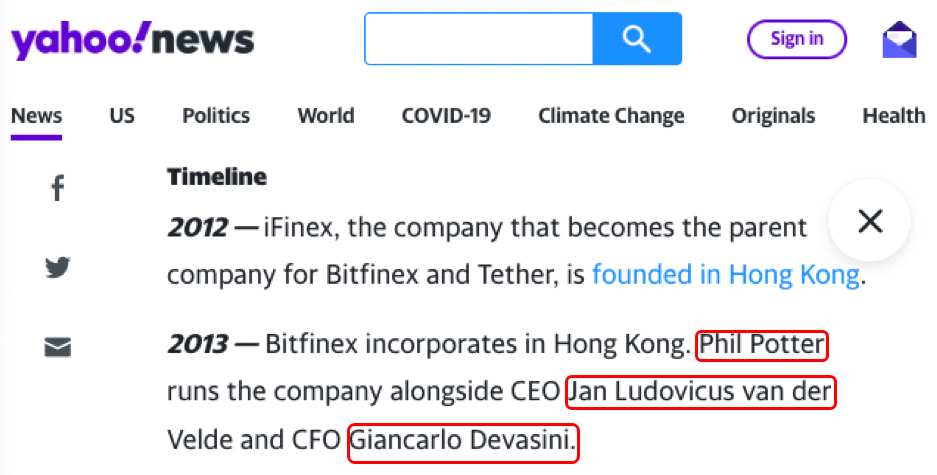
To create entities for these three people, follow the same steps as before. This time, of course, you are looking for a business person entity icon, so search the entity pallet for “person”. Then drag and drop the icon onto your graph.
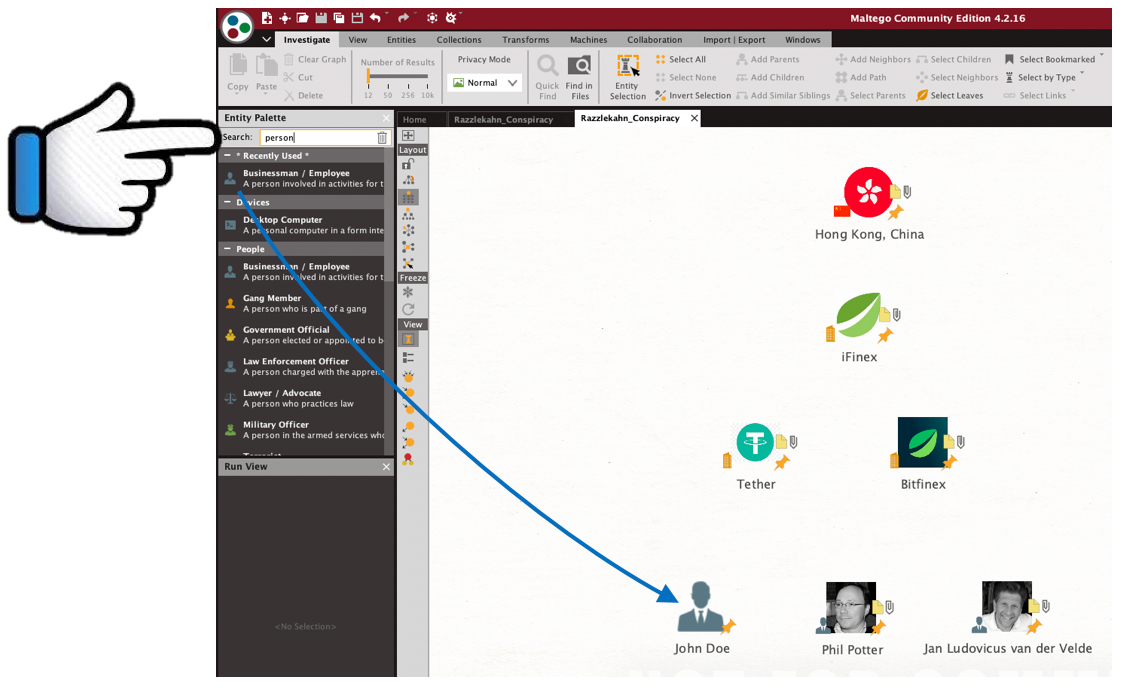
Double click each new entity and go through the steps of finding and adding pictures and notes for these individuals in the entity detail pane.
Working with Entities
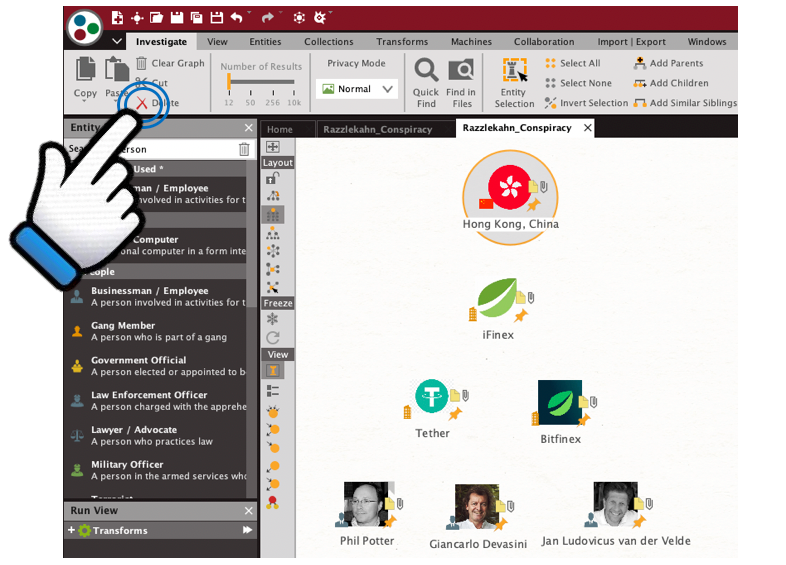
Once you have entities on your graph you can move them around or delete them. First, make sure the selection mode in the Investigate tab is set to “Entity Selection” not “ Link Selection”.
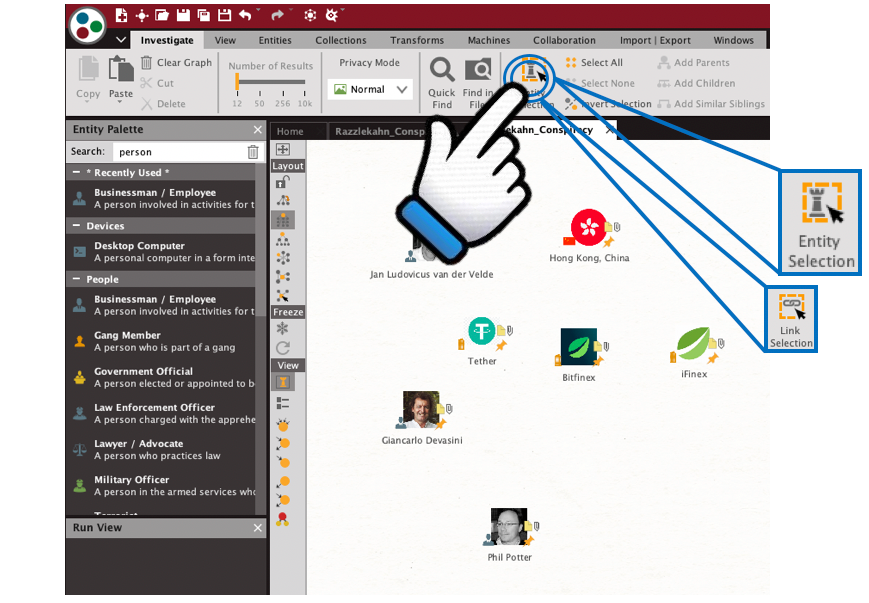
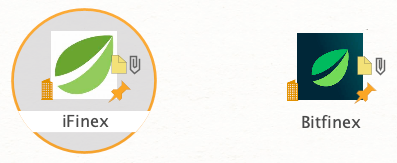
Once you are in entity selection mode, left click once on the entity you want to work with to select it. When it is selected there will be an orange circle around the entity. For instance, in the below image, the iFinex entity is selected and the Bitfinex entity is not selected.
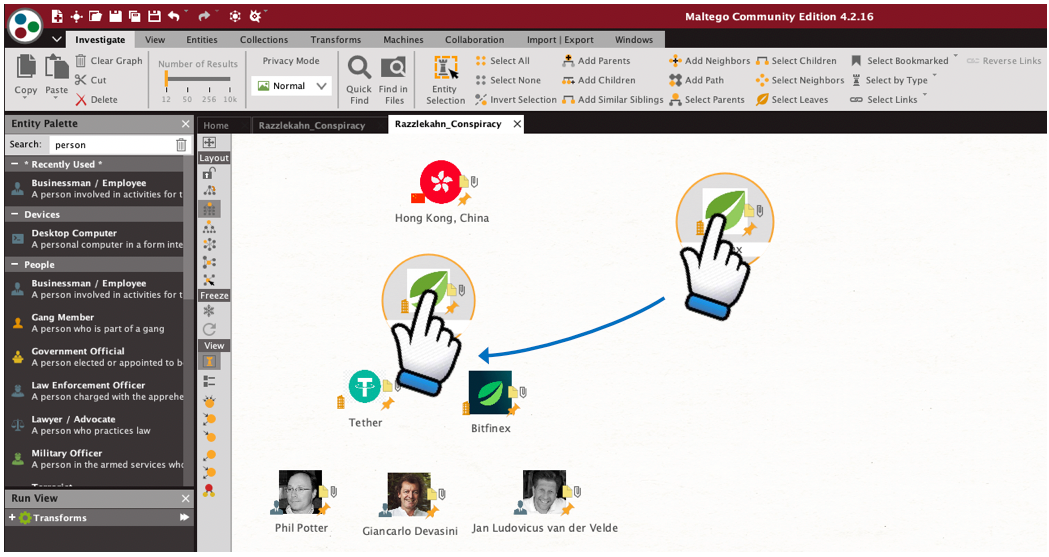
Once an entity is highlighted, you can left click and hold on the entity and move it around the graph. Note that you must left click the entity once to highlight it, then left click and hold it to move it around. If the entity is not highlighted and you left click and hold it, Maltego will try to draw a link (discussed in the next section).
If you want to delete an entity, first make sure you are still in the entity selection mode. Click on the entity once to highlight it. Then click the red X delete in the upper left hand corner of the Investigate tab. For instance, if you want to delete the Hong Kong entity, you would left click on it once to highlight it, then click delete in the upper left corner.
Links Between Entities
Now it’s time to draw the relationships between the entities. In graph theory, relationships between people, places and things are called edges; Maltego calls edges “links”. Links are typically used to distinguish some sort of subordinate relationship, or a relationship where one entity is “giving” something to another entity. This is called a Parent — Child relationship.
One example might be the relationship between two Twitter accounts. In the below image, Twitter_1 follows Twitter_2. Twitter_1 is the “parent” and has “given” Twitter_2 their follower-ship.

In the case of our network diagram, the link points from iFinex to Bitfinex. Bitfinex (the child) is subordinate to iFinex (the parent), because iFinex owns Bitfinex.
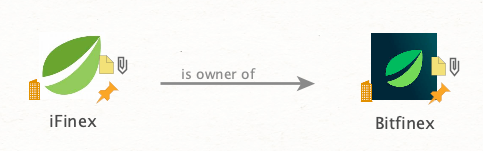
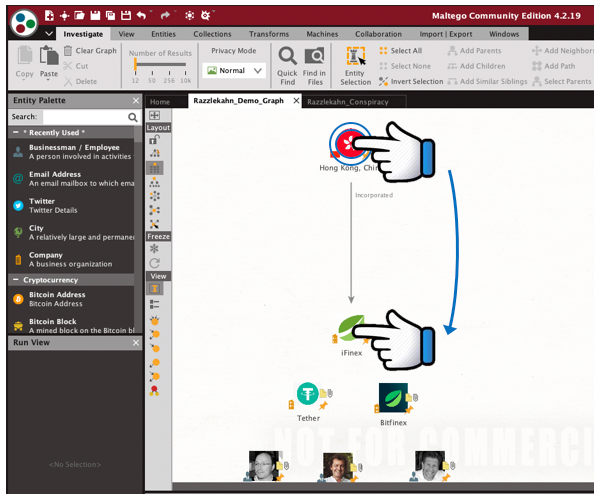
To draw a link between two entities: First, make sure the entities you want to connect are not highlighted; then, left click and hold on the “parent” entity, drag the arrow to the “child” entity, and release the left click.
For instance, according to the Yahoo Finance article, iFinex was founded in Hong Kong. So, left click and hold on the Hong Kong entity, drag the arrow to the iFinex entity, and release the left click.
When you release the left click, a Properties pane for the link will pop-up. The most important thing here is to Label the link. This gives context to the graph and shows why there is a relationship between the two entities. In this case, iFinex was incorporated in Hong Kong, so label the relationship “Incorporated”.
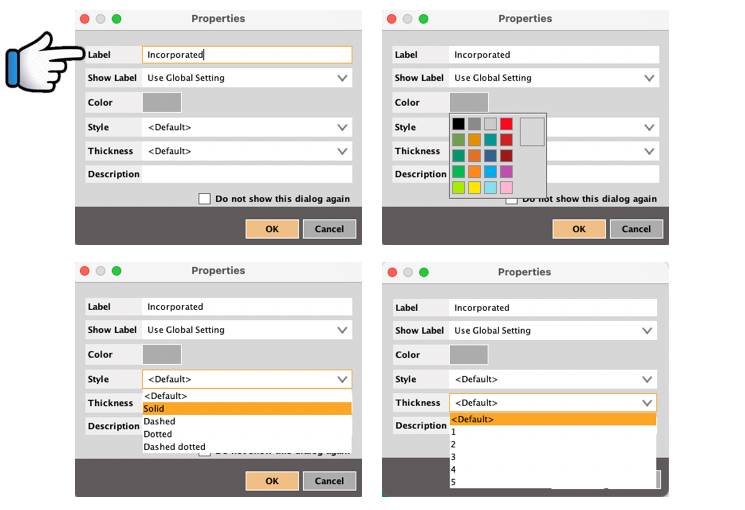
You can also use the Properties pane to change the color, style and thickness of the link. This can be very helpful to visually display types of relationships on a graph when individually labeling each link becomes too visually cluttered. For instance, you might use green links to show personal links between people and then use red links to show professional links between people. Or you might use a solid line to show relationships between people who are friends in real life, and a dashed line to show relationships between people who are friends on social media.
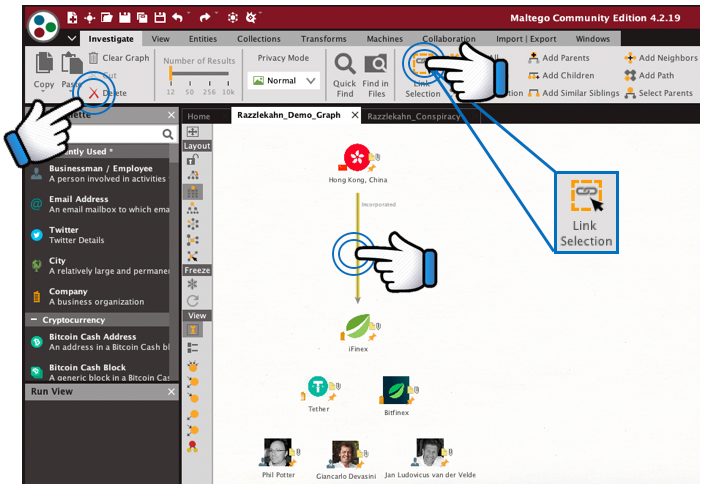
When you want to delete a link, first make sure you switch from the entity selection mode to the link selection mode as described above. Then left click on the link once to highlight the link. Then click the red X delete in the upper left hand corner of the Investigate tab.
For instance, if you want to delete the link between the Hong Kong and iFinex entities, you would make sure you are in the link selection mode in the investigate tab, then left click on the link once to highlight it, then click delete in the upper left corner.
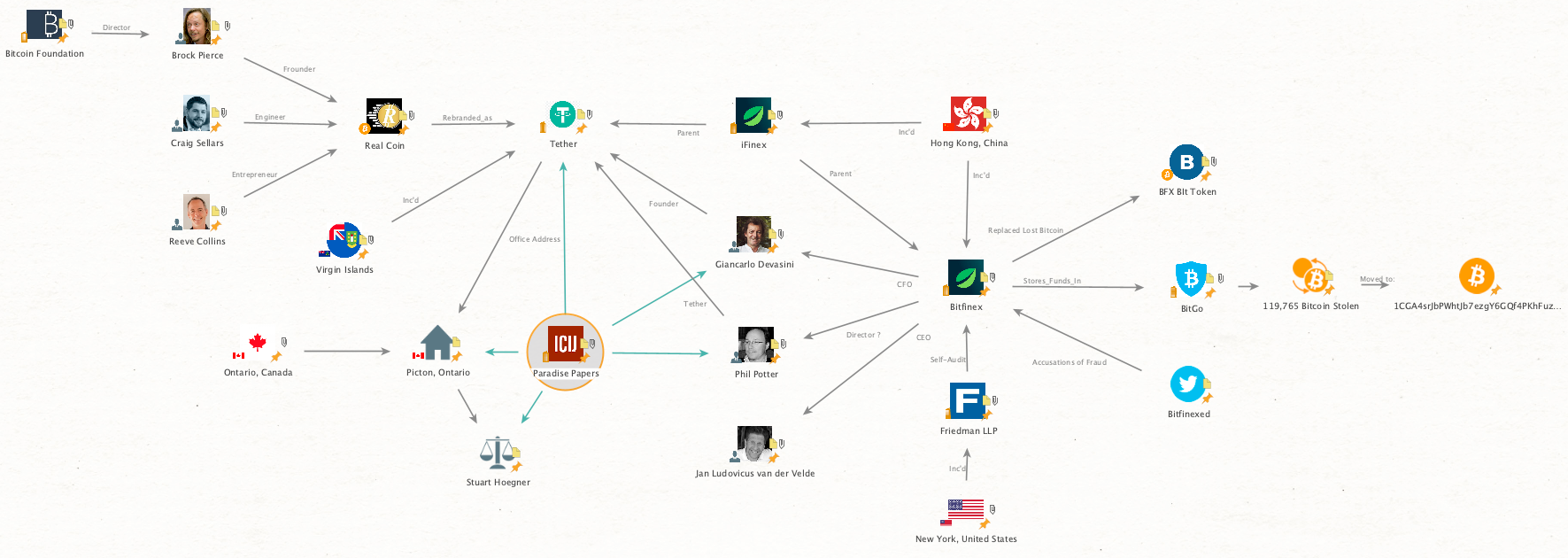
Those are all the basics needed to build a simple network diagram in Maltego. The next step is to go through the entire Yahoo Finance and incorporate all the people, places and things (entities), and the relationships (links) between them, into your network diagram. When you are finished, your network diagram should look something like this:
As I mentioned at the top of the article, in addition to this step-by-step guide, here are two videos which cover the same steps:
Maltego Basics: Building a Network Diagram was originally published in Signal & Noise — Interpreting the Open Source World on Medium, where people are continuing the conversation by highlighting and responding to this story.